
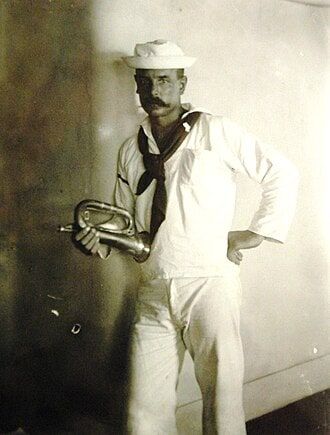
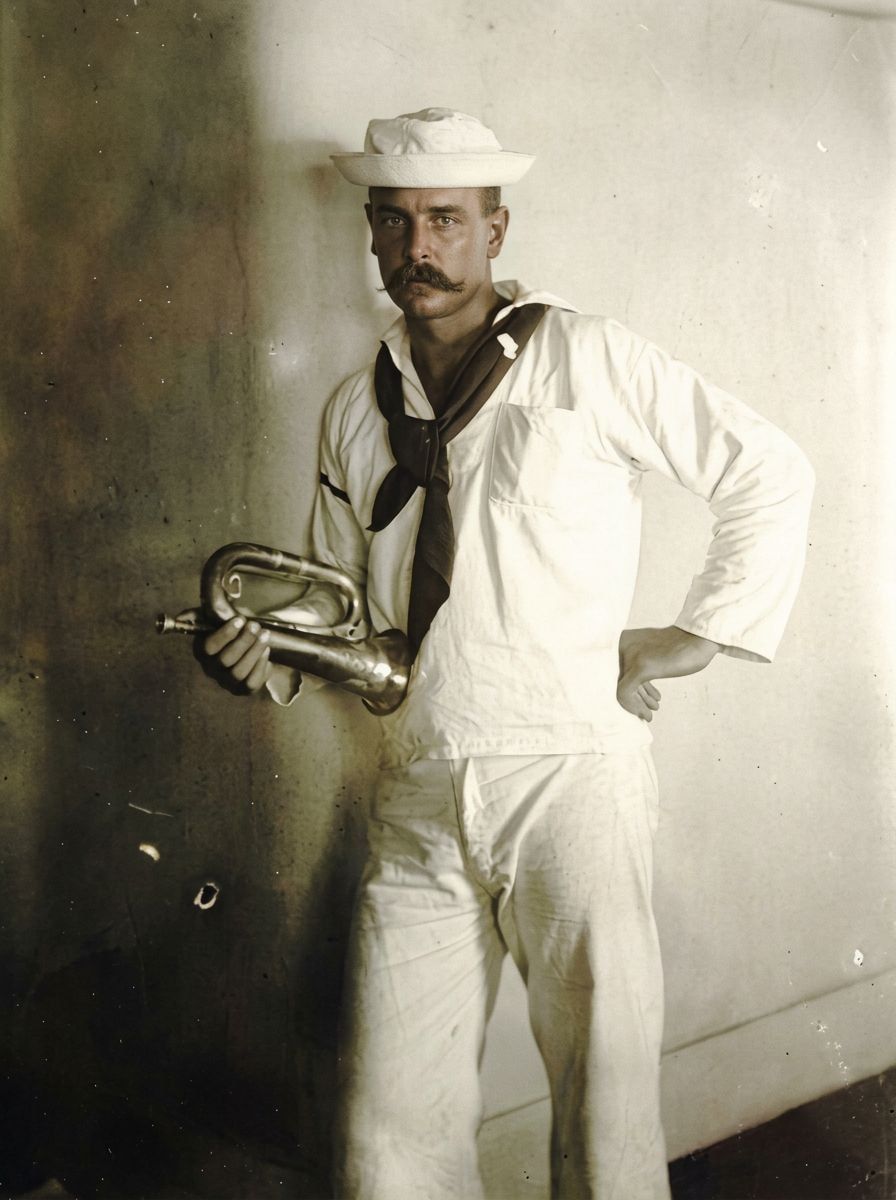
HD Upscale
Boost resolution up to 4×
Memora’s Enhance tool unblurs photos. It sharpens blurry shots and brings soft faces back into focus, and every result opens next to the original so you can compare the two.
Enhance is part of Memora, an app for iPhone and iPad. Memora is not an online tool: you unblur photos in the app, and this website does not process pictures.

Scan with your iPhone camera
Your first restoration is free. iPhone and iPad.

Memora’s Enhance tool fixes blur. It sharpens a photo that came out soft and improves the faces in it, which covers:
Unblurring a photo in Memora takes four steps, and you do not need an account.
Open the Memora app and pick the Enhance tool.
Pick it from your photo library or the Files app, or take a picture of a print with the camera.
The AI sharpens the picture and brings soft faces back into focus.
Drag the before/after slider across the face to compare it with the original, then save or share the result.
Memora’s Enhance tool cannot bring back detail the camera never recorded, and it does not enlarge a photo or clean grain.
Yes, when the face is soft or slightly out of focus: Memora’s Enhance tool is made to bring such faces back into focus.
If the face is so blurred that its detail was never recorded, the AI has to estimate that detail, and the result deserves a careful look next to the original.
Memora’s restoration is face-preserving, which means Enhance is built to sharpen a face and keep it recognizably the same person.
You do not have to take that on trust. The before/after slider on every result lets you set the sharpened face against the blurry one before you save anything.
Your first restoration is free, so you can unblur one photo without paying; it is saved with a “Made with Memora” watermark.
To unblur more photos you need Memora Pro, at $5.99 a week or $39.99 a year in the United States. With Pro the watermark is gone and restorations are unlimited.
No. Memora’s Enhance tool works only inside the Memora app, on an iPhone or iPad with iOS 17 or later. The website does not process photos, and there is no Android app.
Memora’s HD Upscale tool enlarges a photo up to 4×, and its Denoise tool cleans grain, noise and haze.
Boost resolution up to 4×
Clean grain, noise & haze
Get Memora, open Enhance and try it on the blurry photo you care about most.
Your first restoration is free. iPhone and iPad.
Last updated: