
Restore Photo
Repair old, damaged & faded photos
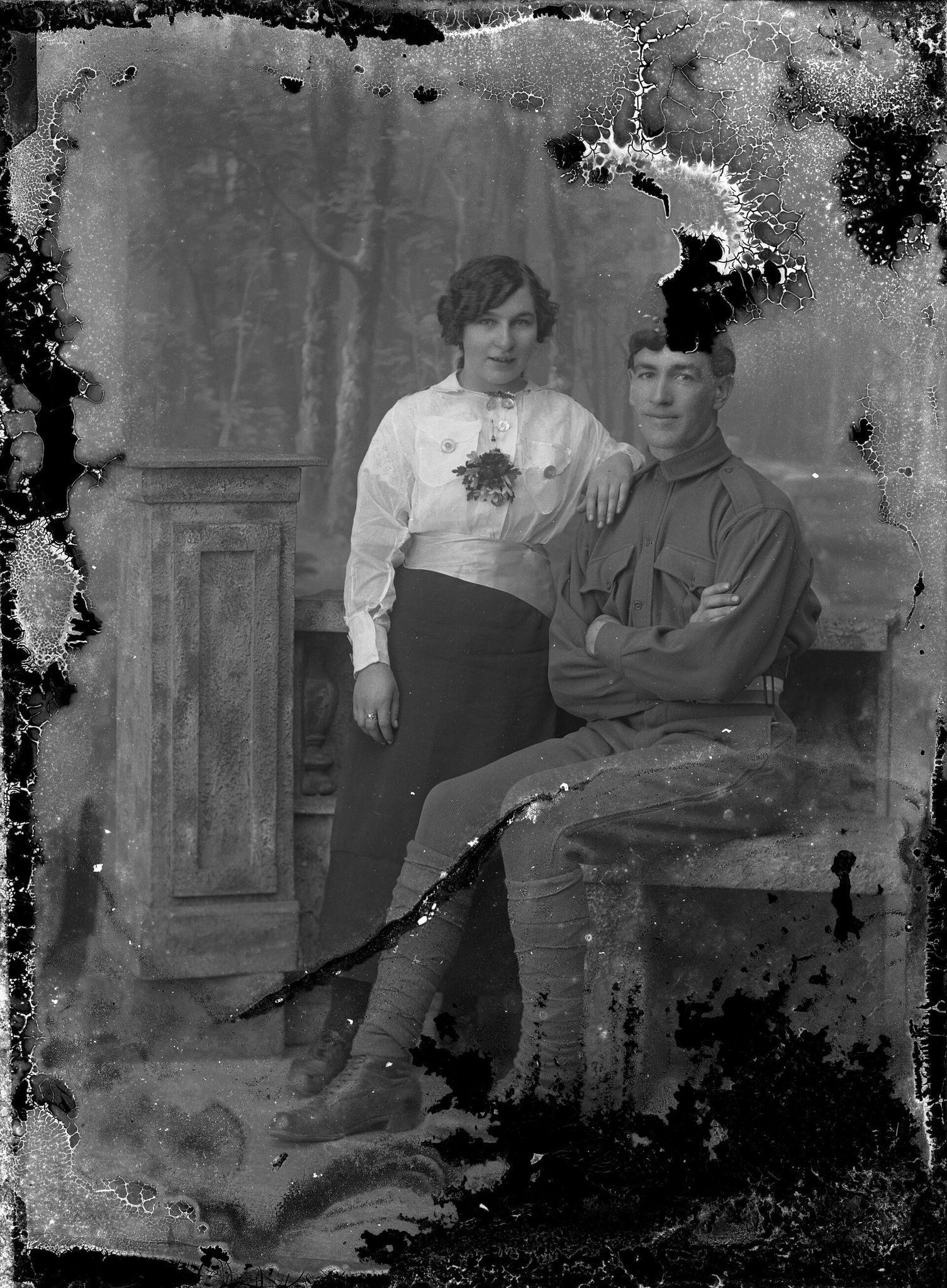
Memora’s Repair & De-scratch tool removes scratches, tears and creases from a photo while staying true to the original. Use it to repair a torn photo or a creased print on your iPhone or iPad.
Repair & De-scratch is a tool inside Memora, an app for iPhone and iPad. Nothing is repaired on this website and there is no online version: you add the photo in the app.

Scan with your iPhone camera
Your first restoration is free. iPhone and iPad.

Memora’s Repair & De-scratch tool removes three kinds of damage from a photo and stays true to the original picture:
Removing scratches from a photo in Memora takes four steps, with no account to create.
Open Memora and tap the Repair & De-scratch tool.
Take a picture of the print with your camera, or pick a photo or a scan from your library or the Files app.
The AI removes the scratches, tears and creases and stays true to the original.
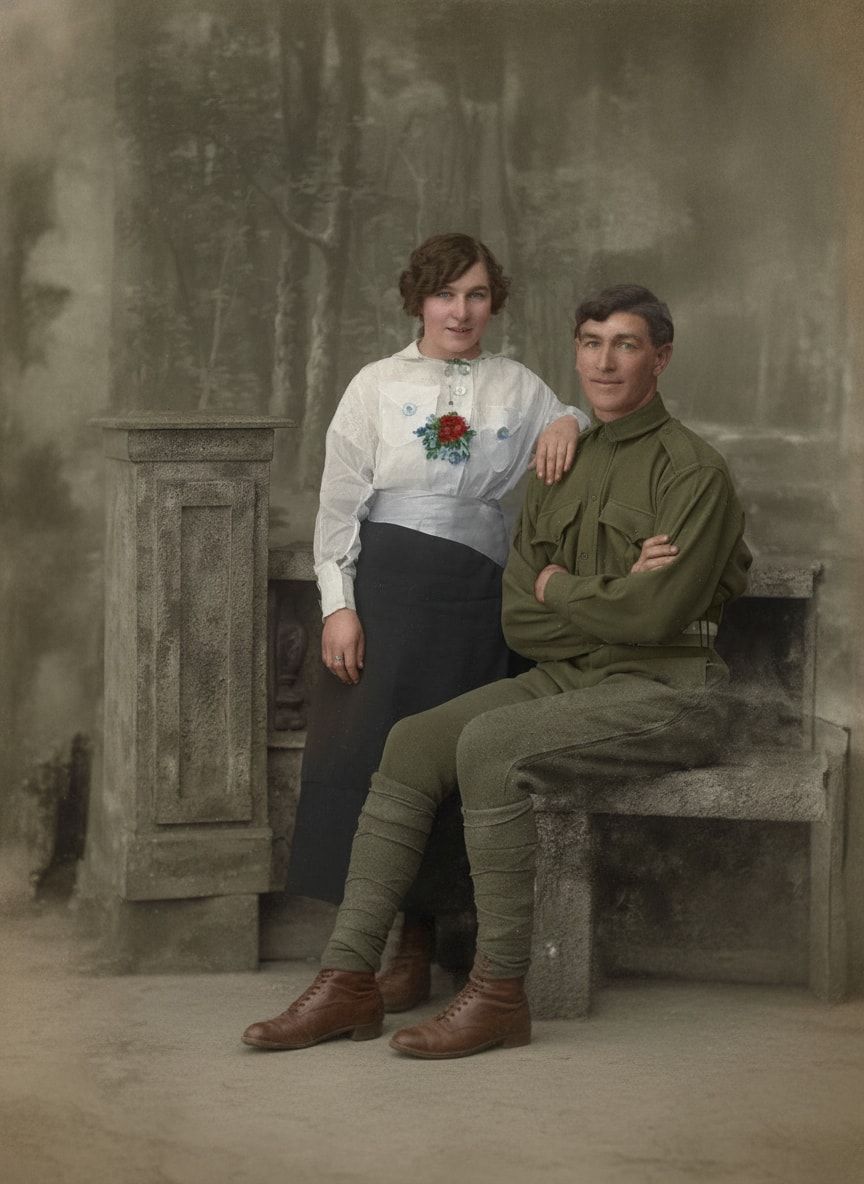
Move the before/after slider across the picture to compare, then save the repaired photo or share it.
Memora’s Repair & De-scratch tool does not remove stains, fading or grain, and it cannot know what was on a missing piece.
Repair & De-scratch removes scratches, tears and creases while staying true to the original. Restore Photo is Memora’s tool for old, damaged and faded photos. It also deals with stains and fading, and it adds color to a black and white photo, which Repair & De-scratch does not.
Choose Repair & De-scratch when the trouble is scratches, tears or creases. Choose Restore Photo when the photo is also stained or faded.
Memora’s Repair & De-scratch tool removes tears from a photo, along with scratches and creases, and stays true to the original.
How well it works depends on the photo. Your first restoration is free, so you can test the tool on your own torn photo before you pay anything.
Your first restoration in Memora is free, and that result is saved with a “Made with Memora” watermark.
For more photos you need Memora Pro: $5.99 per week or $39.99 per year in the United States, with local prices set by Apple. Pro removes the watermark and gives you unlimited restorations. There is no free trial.
No. Repair & De-scratch works only inside the Memora app, on an iPhone or iPad with iOS 17 or later.
Memora has no web version and no Android app, and this website does not process photos.
Memora’s Restore Photo tool repairs old, damaged and faded photos, and its Denoise tool cleans grain, noise and haze.
Repair old, damaged & faded photos
Clean grain, noise & haze
Download Memora, choose Repair & De-scratch and try it on your own photo. Your first restoration is free.
Your first restoration is free. iPhone and iPad.
Last updated: